
Emergency Communications
Staying Connected When the Cell Towers Are Down: A Guide to Satellite Texting
This informal guide covers how to use these life-saving features on an iPhone, with a brief look at similar options for Android below.
When severe weather or power outages take down local cell towers and Wi-Fi, modern smartphones can now act as satellite
communicators. This means you can bypass the cell network entirely by pointing your phone at satellites orbiting in space. https://support.apple.com/en-us/105097#:~:text=Satellite%20features%20on%20iPhone,family%2C%20and%20share%20your%20location.
1. Reaching First Responders (Emergency SOS)
If you are in a life-threatening situation (such as a medical emergency or severe accident) and have no cell service, your iPhone can contact 911 dispatchers directly. https://mashable.com/article/apple-emergencysos-via-satellite-iphone-14-nowlive#:~:text=Emergency%20SOS%20on%20iPhone%3A%20How,emergency%20services%20through%20your%20iPhone.
- Who has this capability: Anyone with an iPhone 14, 15, 16 or 17.
- How to use it: Simply dial 911 as younormally would. If the call fails because there is no network connection, a green button will appear on your screen that says “Emergency Text via Satellite.” https://support.apple.com/guide/iphone/use-emergency-sos-via-satellite-iph2968440de/ios
- What happens next: Tap that button. The phone will ask a few quick multiplechoice questions (e.g., “What is the emergency?”) so you don’t have to type out a long message. It will then instruct you to point your phone at the sky to connect to a satellite and send your answers and GPS location to emergency responders. https://support.apple.com/en-us/101573#:~:text=Once%20you’re%20connected%2C%20your,battery%20life%20for%20your%20iPhone.
2. Contacting Loved Ones (Messages via Satellite)
You don’t have to be in a 911-level emergency to use the satellite. If you just need to tell your family you are safe after a storm, you can send standard text messages. https://support.apple.com/en-us/105097#:~:text=Satellite%20features%20on%20iPhone,family%2C%20and%20share%20your%20location.
- Who has this capability: You need an iPhone 14, 15, 16 or 17, and your phone must be updated to iOS 18 or newer.
- How to use it: When your phone loses all cell and Wi-Fi service, open your normal Messages app. A prompt will appear at the top of the screen offering to use the satellite connection.
- What happens next: The phone will guide you to point your device toward a satellite. Once connected, you can text your friends and family.
- Keep in mind: Satellite signals travel a long way and are much slower than regular cell service. A short text may take a minute or more to send. You cannot send photos, videos, or group texts—only words and emojis
How to Practice Safely (The Connection Demo)
The best time to learn how to connect to a satellite is before an emergency happens. Apple includes a risk-free “Demo Mode” that lets you practice aiming your phone at a real satellite without actually calling 911. https://mashable.com/article/apple-emergency-sos-via-satellite-iphone-14-now-live#:~:text=The%20demo%20will%20temporarily%20disable,and%20receive%20messages%20via%20satellite.
1.Step Outside:
You must be outdoors with a clear view of the sky. Trees, tall buildings, and roofs will block the satellite signal.
2.Open the Control Center:
Swipe down from the very top-right corner of your iPhone screen.
3.Tap the Cellular Icon:
Look for the button with the antenna icon on the right side of the Control Center and tap it.
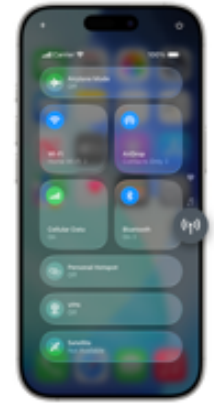
4.Select Satellite:
Tap the Satellite option, then select Try Demo. (Note: This will temporarily turn off your cell service and Wi-Fi to simulate a power outage).
5.Follow the On-Screen Tracker:
The screen will show a radar graphic. Simply turn your body left or right as the arrows instruct until your phone connects with a satellite passing overhead.
Once you are done practicing, you can exit the demo, and your normal phone service will immediately return.
What About Android Phones?
Android devices also offer satellite connections, though the method depends on the phone you have: https://www.att.com/device-support/article/wireless/000107337/Google/GoogleGGX8B
- Newer Google Phones: The newest Google Pixel 9 and 10 models have a built-in “Satellite SOS” feature that works almost exactly like the iPhone’s 911 emergency system. https://support.google.com/pixelphone/community-video/335215357/pixel-9-satellite-sos-the-lifesaving-feature-demoed-step-by-step?hl=en#:~:text=It’s%20an%20emergency%20service%20allowing,%22Pixel%20Satellite%20SOS%22%20setting.
- Standard Android Phones: Major cellular carriers (like T-Mobile) are launching networks using Starlink satellites. This means even older Android phones will automatically connect to a satellite in a complete dead zone, allowing you to send normal text messages without needing to buy a brand-new phone.
Where to Learn More
For official details and troubleshooting directly from Apple, you can read their comprehensive guide: Use Emergency SOS via satellite on your iPhone.